
2026 HARBORHOOD APP
Hello Wai Nui Community!
In order to sign up for paddle sessions, find out about Wai Nui events, etc., download the FREE Harborhood app via either one of these store links:


After downloading and opening the app . . .
sign in entering the phone number with which you registered 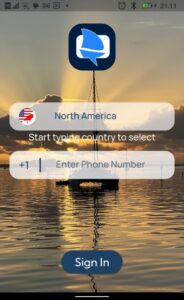
. . . go through the verification . . .
. . . agree to the EULA . . . 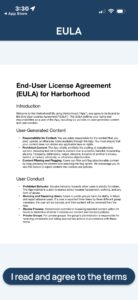
. . . and then you get to this screen 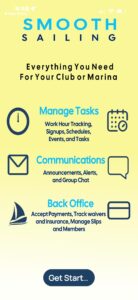 . . . and press GET STARTED, and keep clicking NEXT (other App info) . . . NEXT . . . NEXT . . . etc
. . . THEN you get to PERSONAL INFO 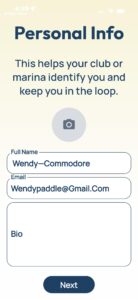
here you enter your FIRST & LAST NAME / DISPLAY name (= name you want people to see, must be more than a first name), your email, and date of birth (don’t make any mistakes) . . . not to worry about BIO or any other requested info then press NEXT . . .
. . . then you get to this 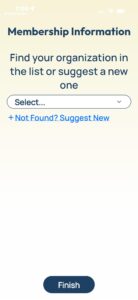 . . . then find Wai Nui . . .
. . . and once found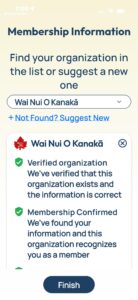 . . . click FINISH . . .
. . . then click on MY CLUBS & MARINAS 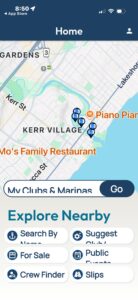
. . .Select WAI NUI from the list of clubs 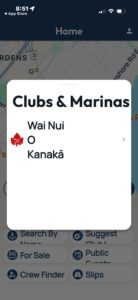
. . . once Wai Nui is selected and shown next to the GO button, press GO 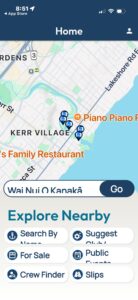
Congratulations! you are in the app! 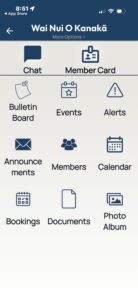
TIPS AND TRICKS on how to use the Harborhood APP
LOG IN/OUT
You can stay logged in, avoiding the verification process each time you access Harborhood on the app or within your browser.
BACK ARROW (exit)
Play around within the APP and notice the BACK ARROW at the TOP LEFT, which is your exit from wherever you may find yourself within the APP!
Sometimes it might be greyed out, but it will still get you back! 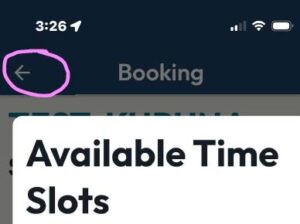
ISSUES WITH TEXT SIZE AND TEXT WRAPPING (jumbled text or non-visible text)
Any time you see only part of text or icons, or the text is wrapped/jumbled, it is because your device is set to larger than normal text size. The easiest way to overcome this (most of the time) is to tilt your phone 90 degrees, and then you should be able to see all information properly displayed.
HOW TO BOOK A PADDLING SESSION
go to the DASHBOARD and select BOOKINGS . . . 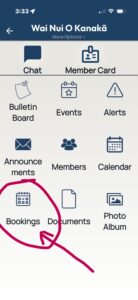
select the type of paddle session, e.g. OC6 or SUP, KUPUNA, for which you want to book yourself . . .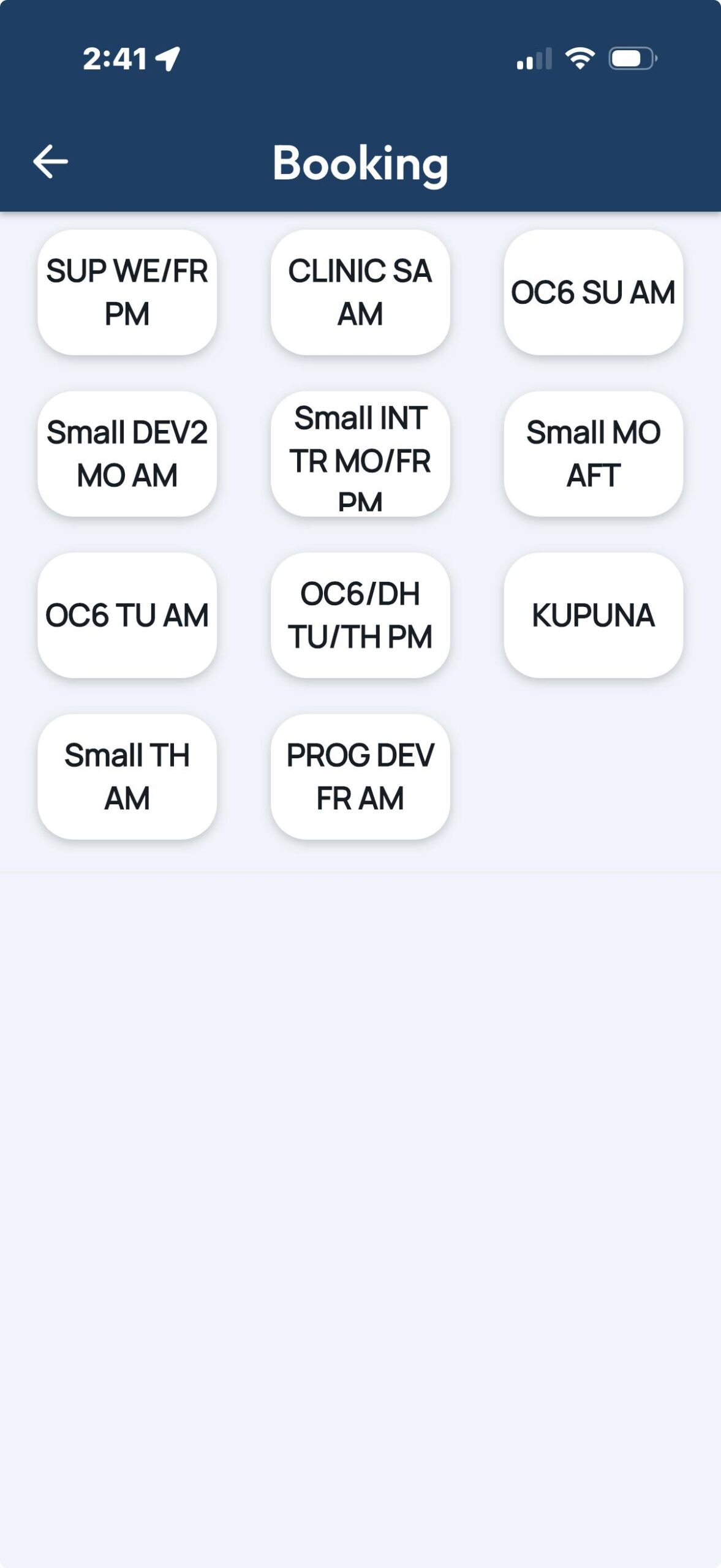
. . . once within the selected paddle session, see the session description at the top 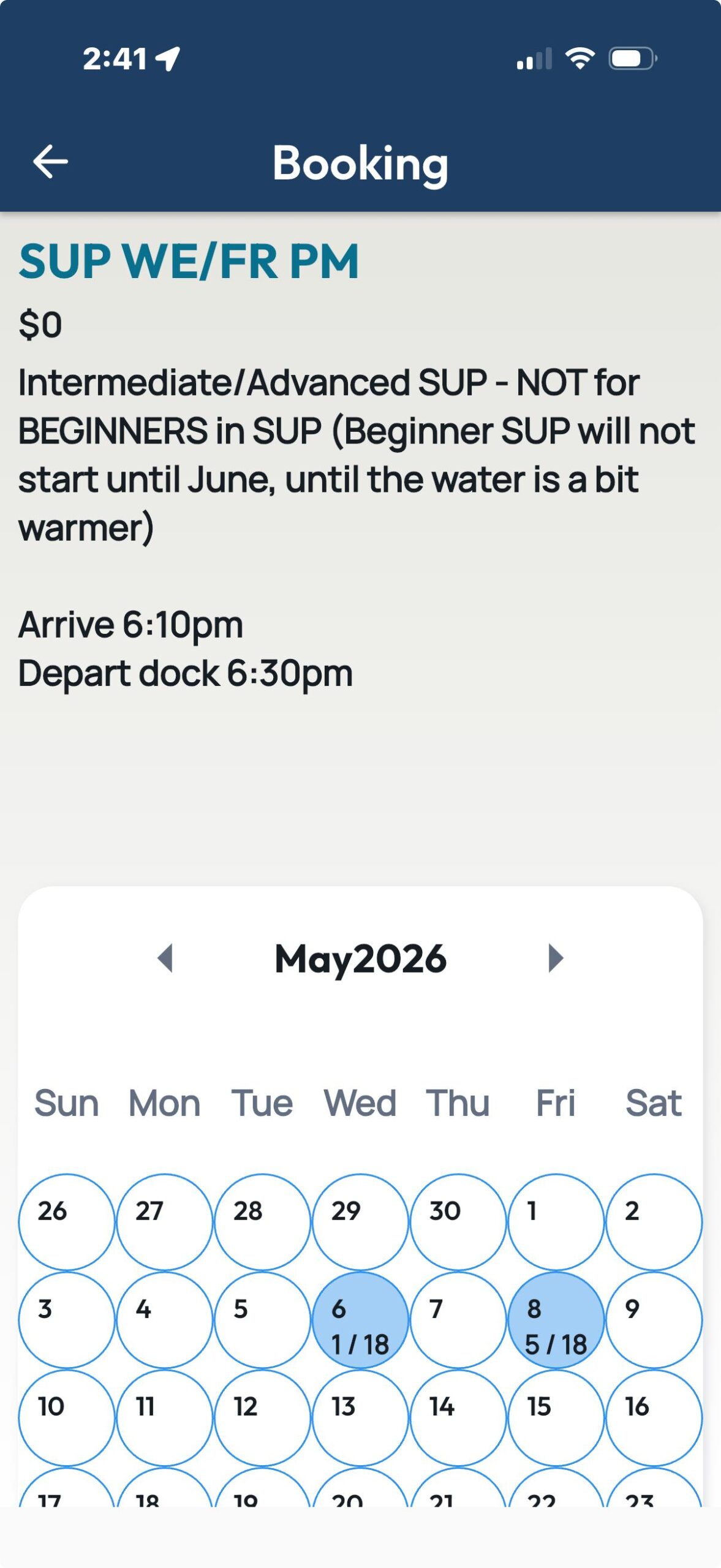
with a session calendar below showing available session dates for which you can book today
. . . at the bottom of the screen (scroll down), it shows who has already signed up for what session 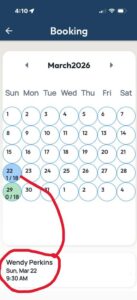
SO, select from the available dates . . . 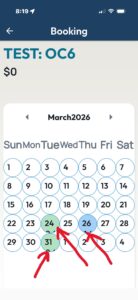
. . . and tap BOOK to sign-up, and tap the confirm prompt to book yourself 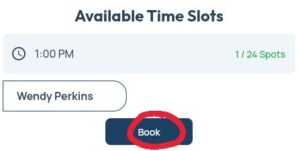
. . . if you DO NOT WANT TO BOOK the session, simply click/touch the BACK ARROW at the top left of of your browser/APP (app is sometimes greyed out), and that will get you out of this selection 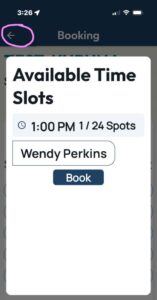
. . . and if you made a mistake or want to cancel your session, click the X next to your name 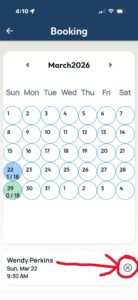
CANCEL A PADDLING SESSION
select BOOKINGS . . .
select the type of paddle session, e.g. OC6 or SUP, KUPUNA, etc. which you want to cancel . . .
once within the selected paddle session, SCOLL DOWN . . . where all the participants are shown . . .
. . . FIND your name and session date you want to cancel
. . . and hit the X next to your name . . . and then confirm . . .
If you have issued cancelling a session, you can always unbook using your computer/laptop by signing into Harborhood via https://harborhoodclub.com